Connect MT4/MT5 and record trades automatically, from entry to close
Put the Tiltnote EA (Expert Advisor) on a chart, and your trades are sent to Tiltnote when you open and close them, with no typing. You only set it up once; after that it records automatically while your computer and MT4/MT5 are running. The EA never places or closes orders. It only reads your trades and records them.
- Your entries and closes go into your journal with no typing.
- Trades from each MT4/MT5 account are kept separate.
- (Optional) Get alerts on the MT4/MT5 screen and by email when you get close to a loss limit.
- Recording and monitoring work only while your computer and MT4/MT5 are running. They stop if you turn off the computer, it goes to sleep, or you close MT4/MT5.
Open this page on the computer where MT4/MT5 is installed. The download and copy buttons are meant for your computer. No computer? You can still type trades into the app, or add many at once from a CSV file.
Before you start, check these three things.
- A paid plan. The free trial does not include the sync. In the web version, you can buy it by card in the US, Australia, New Zealand and Singapore (USD 9.99 a month or USD 79.99 a year) and in Japan (600 JPY a month or 5,000 JPY a year). In other countries, you can buy it in the Android app, where Google Play shows the price in your currency. The EA is not included in the 14-day trial. Selected early users (early user page) can use the paid features, including the EA, free for 90 days.
- MT4/MT5 on a computer (Windows). It cannot be set up from the MT4/MT5 phone app alone. This guide shows the Windows version. It has not been tested on the Mac version.
- An account registered with an email and password (recommended). The sync also works with the account from "Try without signing up", but you need to register to pay in the web version, and if you sign out or change devices without registering, you cannot get back to those records. You can register in the app under Settings → Account. Your records and paid plan carry over when you register.
Setup steps
The steps are almost the same for MT4 and MT5. Do them on your computer.
Download the EA file
On your computer, download the file for the platform you use. The title at the very top of the MT4/MT5 window says "MetaTrader 4" or "MetaTrader 5". The file is usually saved to your "Downloads" folder.
Your browser may warn that the file "isn't commonly downloaded". If you downloaded it from the buttons on this page, you can choose "Keep".
Allow the WebRequest URLs
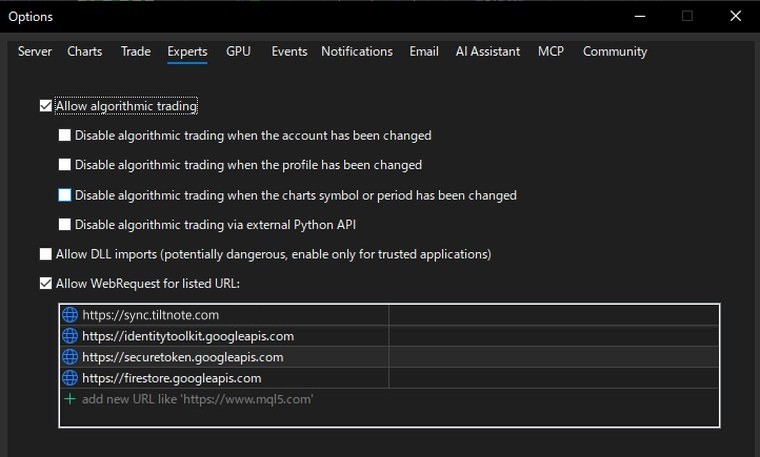
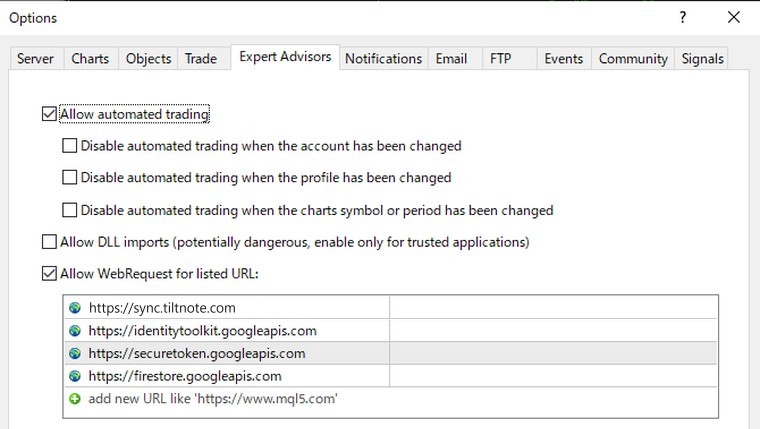
WebRequest is the permission the EA needs to send your records over the internet. In MT4/MT5, open Tools → Options and choose the Expert Advisors tab (it may be shown as "Experts"). Then:
- Tick Allow algorithmic trading at the very top (Allow automated trading in MT4). This only lets EAs run. This EA never places or closes orders, even when it is on.
- Leave the boxes right under it (four in MT5, three in MT4) all unticked. This EA does not need them.
- "Allow DLL imports" is not needed. Leave it unticked.
- Tick "Allow WebRequest for listed URL".
- Add the four URLs below, one at a time. You do the same thing four times:
- Press "Copy".
- Double-click "+ add new URL" in the box.
- Paste with Ctrl + V and press Enter.
The first one,https://sync.tiltnote.comhttps://identitytoolkit.googleapis.comhttps://securetoken.googleapis.comhttps://firestore.googleapis.comsync.tiltnote.com, is the Tiltnote service that checks your link code (no payment details are sent). The other three are Google services. When the list has the four lines shown in the picture below, you are done. If you set this up before and have only three, add the first one. - Press OK.
Move the EA file into the MT4/MT5 folder
- Open your "Downloads" folder, right-click the file from step 1 (
Tiltnote_AutoSync.ex5for MT5,Tiltnote_AutoSync_MT4.ex4for MT4) and choose "Copy". - In MT4/MT5, choose
File → Open Data Folder. Another folder window opens. - Double-click
MQL5→Experts(MQL4→Expertsfor MT4). - Right-click an empty area and choose "Paste".
Get a link code in the app and copy it
The EA connects to your records with a "link code" from the app. You do not need to put your email or password into the EA. Once you have the code, just paste it in step 5.
Using "Try without signing up"? You cannot open those records from the web version on your computer (records without a registered account belong only to the device you use). Register an email address first in the phone app under Settings → Account, and then you can sign in to the same account in the web version on your computer (your records and paid plan carry over). If you do not want to register, get the link code in the phone app and send it to your computer in a way only you can see, as described below.
- On your computer, open the Tiltnote web version with the button above and sign in with your usual account. You can also use the phone app, but then you have to move the code to your computer, so the web version is easier.
- Go to "Settings" → "MT4/MT5 sync" → "Issue link code".
- Press "Copy" under the code (a long code that starts with
TN-). - The code is shown only this once. It is safest to keep this window open until you have pasted it in the next step. If you close it, you can press "Issue a new code" to get a new one (the old one stops working within about an hour).
If you got the code on your phone, send it to your computer in a way only you can see (for example, an email to yourself).
- Do not show it or send it to anyone else, and keep it out of screenshots.
- If you think someone saw it, press "Issue a new code" in the app. An EA still using the old code usually stops by itself within about 15 minutes, and the old code stops working within about an hour. Then paste the new code into the EA.
- Before you send an MT4/MT5 log to anyone, delete every line that contains a code starting with
TN-. MT4 in particular writes the code into its log each time the EA loads while the code is in the EA input. - If you sent a log without deleting those lines, or someone else may have seen your log, press "Issue a new code" in the app (the old code stops working).
Attach it to a chart and paste the link code
In the Navigator (press Ctrl + N if you cannot see it), find "Expert Advisors" and drag Tiltnote_AutoSync (Tiltnote_AutoSync_MT4 in MT4) onto the chart of any currency pair (double-clicking it also attaches it to the current chart).
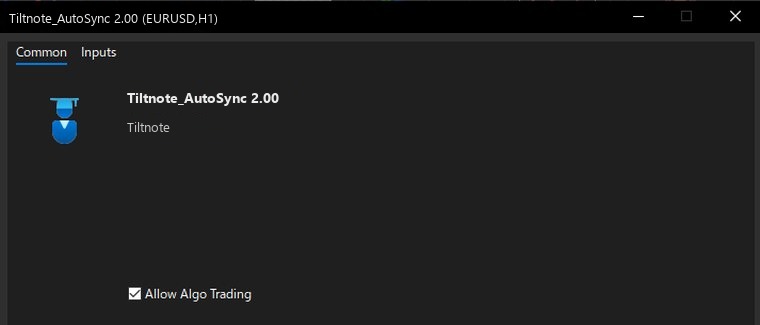
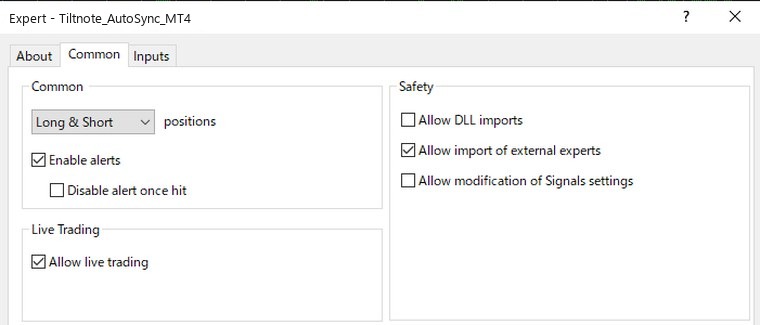
A settings window opens. Then:
- On the "Common" tab, make sure "Allow Algo Trading" (Allow live trading in MT4) is ticked. This EA never places or closes orders, even when this is ticked.
- Open the "Inputs" tab (MT4 and MT5 in English both use this name; in the Japanese MT4 it is called "パラメーターの入力"). If you are not sure which tab it is, open the tab that lists "Link code (連携コード)".
- Find the row named "Link code (連携コード)" (the part in brackets is "link code" in Japanese; it may also show as
InpLinkCode). Double-click the value box on the right. - Paste the code from step 4 with Ctrl + V and press Enter.
- Press OK.
You do not need to change any other boxes or settings.
After the first connection, this computer remembers the code. When the bottom-left line turns yellow and says "For safety: open the EA settings (F7), clear the Link code field…", click the chart, press F7, delete the value in the "Link code (連携コード)" row and press OK. The EA keeps connecting with the remembered code (the line turns green). If you leave the code in the box, MT4 writes it into its log every time it starts, and it is also kept in the chart's saved files.
- The code is remembered for each account. If you switch to another account, paste the code once in that account (the bottom-left line turns red and says no code is remembered for this account; the EA stays on the chart and waits).
- Do not save the inputs to a settings file (a .set file in Presets) with the "Save" button. The code would stay in that file.
- If you used an older version of the EA in MT4 with the code left in the box, your old logs still contain the code. To be safer, press "Issue a new code" in the app, paste the new code, then clear the box once it connects (the old code stops working; the new code appears in the log only once, on the day you paste it).
- If you send your MT4/MT5 data folder (MQL4 or MQL5) to anyone, leave out the
Files\Tiltnotefolder. It contains the remembered code.

Files folder, leave the link code box empty and it keeps working as before. If you paste a link code, the code is used instead. We recommend switching to the link code, so your password does not need to stay on your computer (after switching, you can delete that file).Check that it works
A mark at the top right of the chart shows the EA is running: a blue hat in MT5 (a smiley face in older versions) and a smiley face in MT4. If you see a gray hat or a sad face, click the Algo Trading button on the top toolbar (AutoTrading in MT4) to turn it on (this EA still never places or closes orders).
Open the "Toolbox" at the bottom ("Terminal" in MT4; press Ctrl + T if you cannot see it) and click the "Experts" tab. If it shows a log like the one below, the sync is working.
🚀 Tiltnote auto sync started. Account: mt5_xxxxxxxx
In MT4:
[start] Tiltnote auto sync started. Account: mt4_xxxxxxxx
The bottom left of the chart also shows the EA's status in one line (from version 2.20).
- Green dot "Tiltnote watching · checked 08:05:30": it is running. The time moves forward every few seconds. If the time stops moving, the EA is not running.
- Yellow dot: it is reconnecting or checking your paid plan, and retries on its own. Just wait. If it says "For safety: … clear the Link code field", the EA is running; clear the box as shown in the box in step 5.
- Red dot "Stopped: ...": it will not fix itself. Do what the line says (for example, paste the link code again). This red line stays on the chart even after the EA is removed.
You do not need to place a trade just to test it. Next time you open a trade, check that it shows up under "Open" in the app.
- The EA records only trades made after you first attach it. Earlier trades are not added. You can add past trades with the app's CSV import (free).
- In MT4, while the link code is in the EA input, the log in the "Experts" tab shows the code as it is every time the EA loads (MT5 does not). Clear the box once it connects, as shown in the box in step 5. Before you send a log from MT4 or MT5 to anyone, delete every line that contains a code starting with
TN-. - If you close only part of a trade, MT4 now works like MT5: everything stays in one record under the original order (from EA 2.24; in older MT4 versions, each closed part was recorded separately).
- The EA only watches while your computer and MT4/MT5 are running. If you turn off the computer, let it sleep, or close MT4/MT5, recording and loss-limit alerts stop.
- Once connected, this PC remembers the link code for each account. You do not need to paste it again after reopening MT4/MT5 or attaching the EA again. If you give the PC to someone else, set the EA input "Forget the link code remembered on this PC" to true and attach it once to make it forget the code.
(Optional) Get loss-limit alerts
Turn on "Loss limits" in the app's Settings. While MT4/MT5 is running, the EA checks your account, including open positions, and shows an alert on the MT4/MT5 screen as you approach a limit (it only alerts; it does not close anything).
In the same settings, check "Also email me at 80% and 100%" to get an email too (sent only to a verified email address).
With this checked, we also email you once if the EA stops for over 30 minutes while you have open positions (for example, the computer lost power, went to sleep, or the connection dropped). We often cannot tell why it stopped, so we may also send it if you close MT4/MT5 or remove the EA yourself while you have open positions. We do not send it when you have no open positions, or on weekends while the market is closed (EA versions before 2.22 send it even with no open positions). However, if you turn off the computer over the weekend while holding positions, you will get one "stopped" email on Monday morning after the market opens (from around 22:30 UTC on Sunday). You can also see when each account was last seen in the app under Settings → MT4/MT5 sync.
To get them on your phone too, copy the MetaQuotes ID from the settings of the MT4/MT5 app on your phone into Tools → Options → Notifications in MT4/MT5 on your PC, and tick "Enable Push Notifications".
MT4 users: right-click the "Account History" tab at the bottom and choose "All History", so weekly/monthly losses and deposits are counted correctly.
Words used in this guide
- EA (Expert Advisor)
- A small program that runs inside MT4/MT5. This EA only reads your trades and sends them to Tiltnote.
- Link code
- Your personal code from the app that connects the EA to your account. It starts with TN-.
- WebRequest
- The permission the EA needs to send your records over the internet. In step 2 you allow four addresses.
- Algo Trading (AutoTrading in MT4)
- The switch that lets EAs run. This EA never places or closes orders, even when it is on.
- Navigator
- The list on the left side of MT4/MT5 that shows your EAs (press Ctrl + N to show it).
- Drag and drop
- Press and hold the mouse button on a name, move it onto the chart, and let go.
- Log ("Experts" tab)
- The record of what the EA is doing, at the bottom of MT4/MT5. Check it if something goes wrong.
- MetaQuotes ID
- A short ID shown in the settings of the MT4/MT5 phone app. Put it into MT4/MT5 on your PC to get alerts on your phone.
If it does not work
Check this first
Look for the running mark at the top right of the chart (a blue hat in MT5, a smiley face in MT4). If it is not there, see "There is no running mark" below. If it is there, open the "Experts" tab (step 6) and find the same message in the headings below.
The log says it is "a paid-plan feature"
This appears during the free trial, or before your payment has been confirmed. Right after paying, it is usually reflected within 1 minute. If the payment notice is delayed, our periodic check reflects it within 2 hours at most. You can leave the EA attached in the meantime. In MT5, missed trades are recorded once the payment is confirmed. In MT4, please add trades closed during that time by hand in the app.
The log says "WebRequest error"
A URL from step 2 is missing. Check that all four URLs are registered exactly, with no typos. If you set it up before, check that the first one (sync.tiltnote.com) is there.
My broker's or prop firm's rules do not allow WebRequest or EAs
Automatic recording through the EA cannot be used on that account. Type your trades into the app, or export your MT4/MT5 trade history as a CSV file and import it into the app all at once (both are free). Please do not use the EA against those rules.
The log says "no link code"
The "Link code (連携コード)" input of the EA is empty. Paste the code from the app, as in steps 4 and 5. To open the EA settings again after attaching it, click the chart and press F7.
The log says "The link code looks wrong"
Part of the code was cut off, or extra characters got in. Paste exactly what you copied with "Copy" in the app. The code starts with TN-. If you no longer have it, press "Issue a new code" in the app and paste the new one.
The log says "This link code no longer works"
This is an old code, from before you pressed "Turn off" or "Issue a new code" in the app. Get a new code in the app and paste it.
When does the old code stop working after I issue a new one?
Any EA using the old code stops by itself within 15 minutes, and the old code stops working within an hour.
The log says "Too many tries"
The EA tried to connect with the link code too many times in a short time. Wait about a minute, then remove the EA from the chart and attach it again.
The log says "The link code was turned off or replaced in the app, so auto sync has stopped"
You pressed "Turn off" or "Issue a new code" in the app, so the EA stopped by itself and was removed from the chart. To keep going, get a new code in the app and attach the EA again with it, as in step 5.
The log says "Sign-in failed"
This appears if you use the old way (with a file). The email and password in the file do not match your Tiltnote login. If you switch to a link code, you do not need a password (steps 4 and 5).
There is no running mark (blue hat or smiley face)
The "Algo Trading" button on the top toolbar ("AutoTrading" in MT4) is off. Click it to turn it on (this EA still never places or closes orders). If it still does not appear, remove the EA from the chart and repeat step 5.
Can I use it on a prop firm account?
The EA never places or closes orders; it only reads and records your trades. It connects only to the four addresses in step 2 (three from Google, and the Tiltnote service that checks your link code). Whether EAs are allowed depends on each firm's rules, so please check your firm's terms.
Entries show up but closes do not
After a close, it can take from a few seconds to about a minute. If it still does not show up after waiting, email contact@tiltnote.com.
The same log line appears twice or more
The EA is on several charts. Look through the other chart tabs for one with the running mark at the top right, right-click it → "Expert Advisors" → "Remove". It should stay on only one chart.
I use the older "ToreKanjo_AutoSync" EA
Switch to the new "Tiltnote_AutoSync". Remove the old EA first (right-click the chart → Expert Advisors → Remove), then attach the new one. If both are attached, the same trades are processed twice. With the new EA, we recommend pasting a link code (steps 4 and 5). Your old login file also still works as it is; no need to rename it.
The log says "Could not write the heartbeat (403 refused)"
The server refused the EA's heartbeat (used to email you if the EA stops). Your trades are still being recorded and loss limits are still watched. Please check these three things:
- Your paid plan has not ended (you can check in the app's Settings).
- Your computer's clock is not far off (in Windows, Settings → Time & language → turn on "Set time automatically").
- The number of accounts: heartbeats can be kept for up to 10 accounts per user. The heartbeat of an account you no longer use is removed automatically after 30 days without updates, and then a new account's heartbeat can be written.
It still does not work
Email us at contact@tiltnote.com with the error text from the "Experts" tab. When you paste or send a log, delete every line that contains a code starting with TN- (if you forgot, press "Issue a new code" in the app).